Understanding the User Dashboard in ZFour HRMS: A Simple Guide
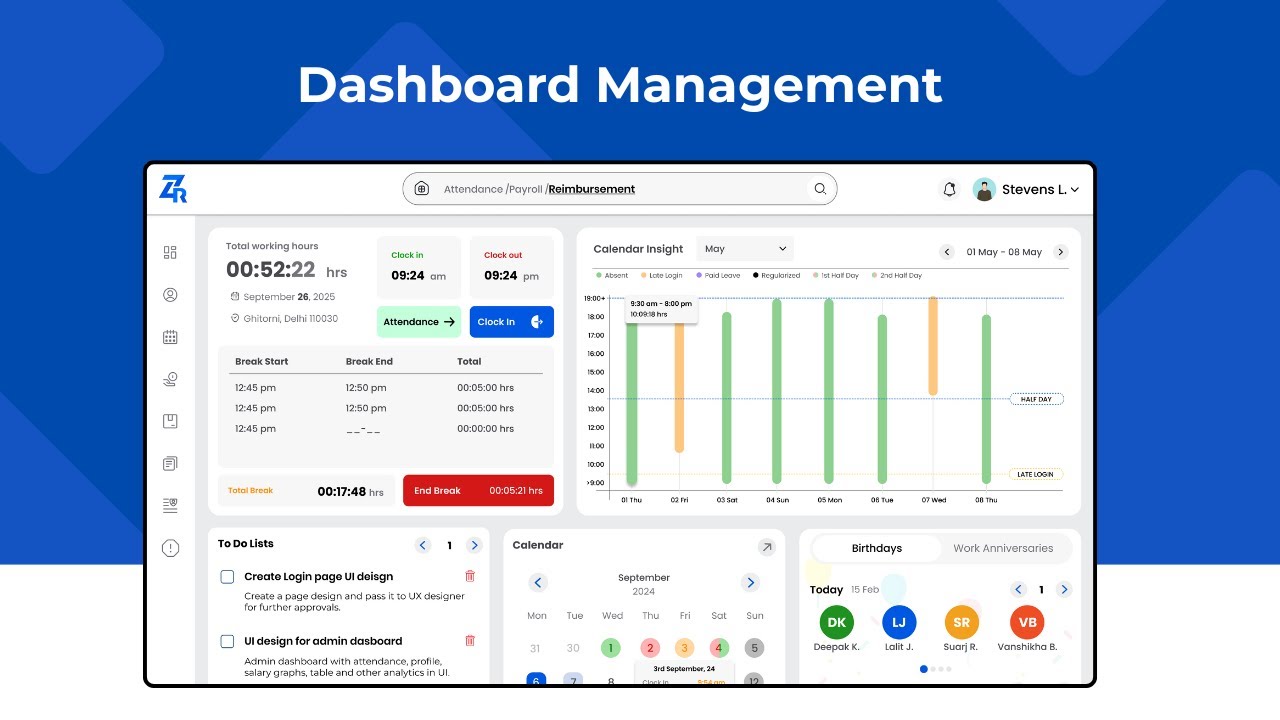
When employees log in to ZFour HRMS for the first time, the very first screen they see is the User Dashboard.
This dashboard is designed to feel familiar, clean, and comfortable—almost like your personal workspace where everything you need is right in front of you.
Whether someone wants to check attendance, apply for leave, look at company updates, or review their profile, the dashboard gives a clear starting point for everyday tasks.
This guide will help any employee understand the User Dashboard in the simplest, human way possible.
Understanding the User Dashboard
Think of the User Dashboard as your homepage inside ZFour HRMS.
It gives you a quick snapshot of your day, your upcoming work, your attendance, and all the important things you should know as an employee.
It’s built to reduce confusion and save time, so you don’t have to search or ask HR for basic information.
What You’ll Find on the User Dashboard?
Here is a comfortable walk-through of everything the dashboard offers.
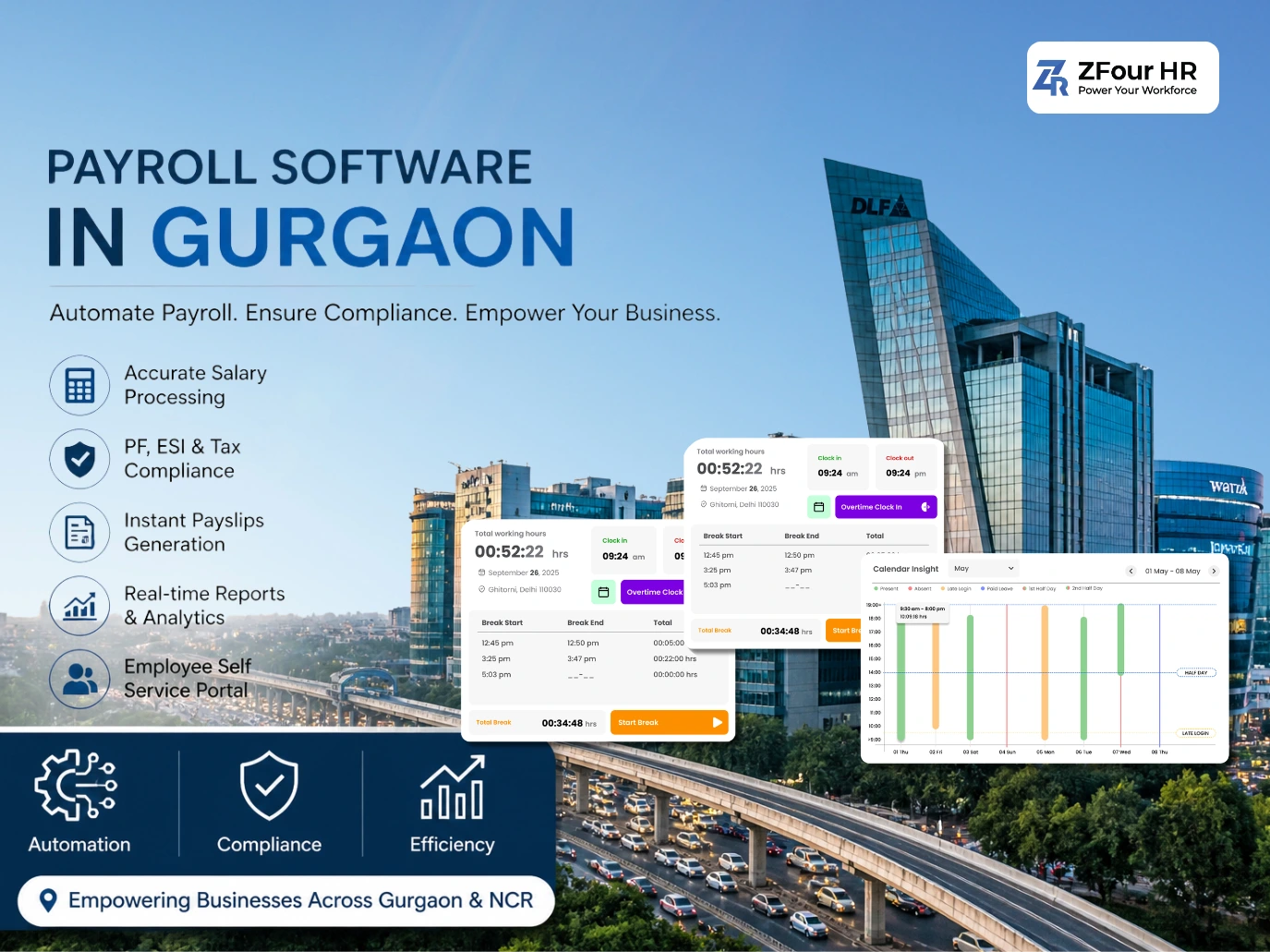
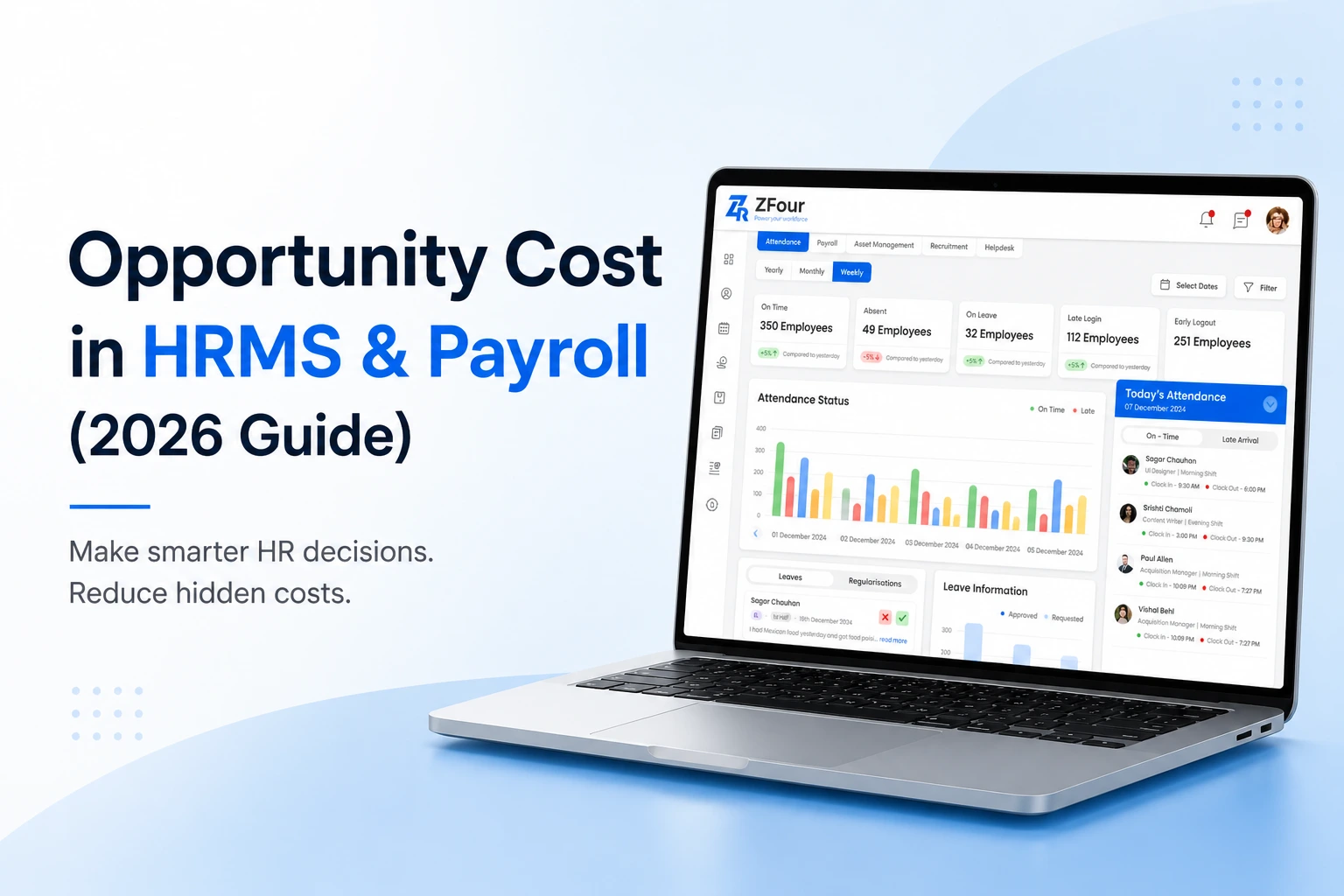
Attendance Overview
This section shows your day clearly.
You can see your punch-in status, punch-out time, total working hours, and whether you were early, late, or on time. It gives you clarity without needing to check with HR.
Leave Summary
The dashboard shows your available leave, how much you have used, and any upcoming leave you have already applied for. This helps you plan your time without guessing.
Instead of searching through menus, you’ll find short links to the tasks you use daily, such as applying for leave or checking attendance. It’s placed upfront so you don’t waste even a few extra seconds.
Notifications and Updates
Any new information from HR or your company appears here.This could be a policy update, a shift change, a leave approval, or a company-wide announcement.
Profile Snapshot
Your name, employee ID, department, designation, and reporting manager are all displayed neatly. It acts like your digital ID card inside the system.
Monthly Attendance Calendar
A simple calendar view shows your monthly attendance pattern with present days, leaves, holidays, and week-offs. It helps you understand your month at a glance.
Announcements or Notice Board
Important company announcements appear here, such as festive holidays, training sessions, celebrations, and reminders from HR. It keeps everyone informed without sending hundreds of messages.
How to Use the User Dashboard (Step-by-Step)
You don’t need any technical knowledge to use the dashboard. Here’s how it works:
Step 1: Log in to your ZFour HRMS account.
Step 2: The dashboard opens automatically.
Step 3: Check your attendance status for the day.
Step 4: Review your leave balance if needed.
Step 5: Read any new notifications.
Step 6: Use the quick buttons for actions like applying for leave or checking attendance.
Step 7: Scroll down to see your calendar, profile, and announcements.
That’s it. Everything is intentionally simple and accessible.
Why the User Dashboard Matters
A good dashboard saves time, reduces questions, and helps employees work comfortably. Instead of searching for options, everything is visible right in front of you. It helps you stay organized, informed, and confident while using the HRMS.
Your workday becomes smoother when everything you need is right in front of you.
The ZFour HRMS User Dashboard is designed to give every employee clarity, comfort, and confidence from the moment they log in.
Start exploring your dashboard today and experience a more organized and stress-free work routine.